How Pinterest can fit into your creator workflow
15 October 2026

Creating content isn’t always linear. It can be messy, iterative and spread across platforms. Some days you’re gathering inspiration. Others, you’re planning, making, editing or trying to extend the life of something that you’ve already published.
Within that process, there’s more to Pinterest than you might think. It can help to support the way you already work—whether you’re creating and publishing from scratch or bringing over content that you’ve shared on other channels.
Inspiration: Find ideas that people already want
Pinterest tools can help you to find a first spark of inspiration or turn a vague concept into a clearer creative direction.
What it does: See what audiences like yours might be interested in, which searches are currently rising and the terms that people are using to find them.
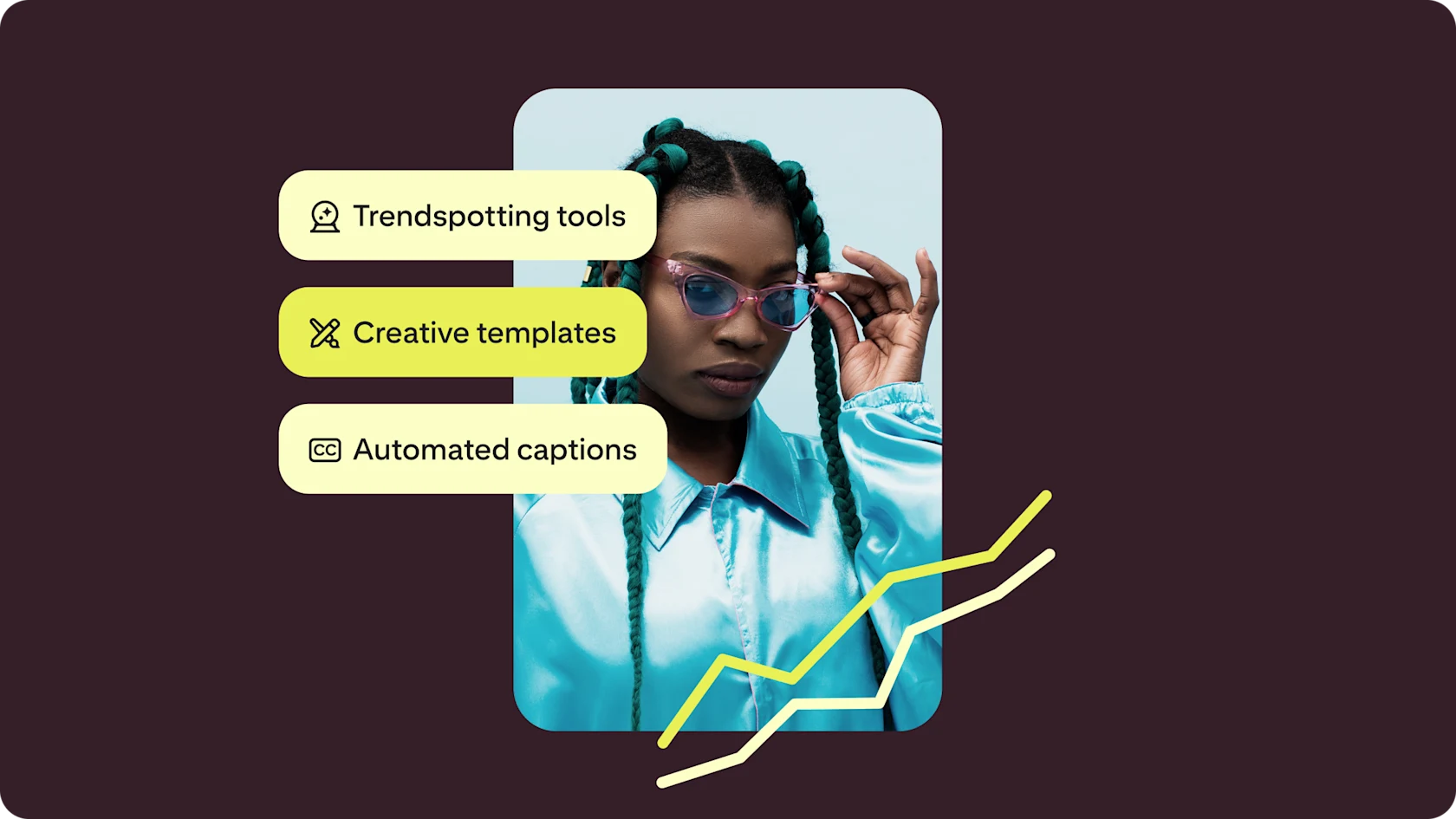
How it fits into your workflow: Whether you have an idea in the works or aren’t even sure where to start, Pinterest Trends can help you to decide what to create next. If you already have an idea, use it to sharpen your direction by seeing which aesthetics, moods, themes and visual references are resonating with people on Pinterest at that time.
Try it: Visit Pinterest Trends. Choose your region and relevant interests to get tailored insights.
Planning: Organise what’s next
Bring references, visual systems, storytelling structure and project direction together in one place.
What they do: Create customisable collections of content for a theme, aesthetic, project, item… or anything that helps you to get your thoughts in order. Add sections for further organisation. Need a little space to experiment? You can also make a board private.
How they fit into your workflow: Once you’ve gathered inspiration, use boards to turn individual inspiration into cohesive ideas. Create a board for an upcoming home décor project, with sections for each room. Save visual inspiration for a product shoot or brand partnership. Or map out your next week of outfits.
Try it: Look through your saved Pins and see what themes emerge. Maybe you’re really into purple right now, or maybe you’ve been thinking about your outfits for next week. Pick one and create a board to start planning your next post or project.
Pro tip: Select the ‘More ideas’ button in a board or board section to find recommendations that fit what you’ve curated.
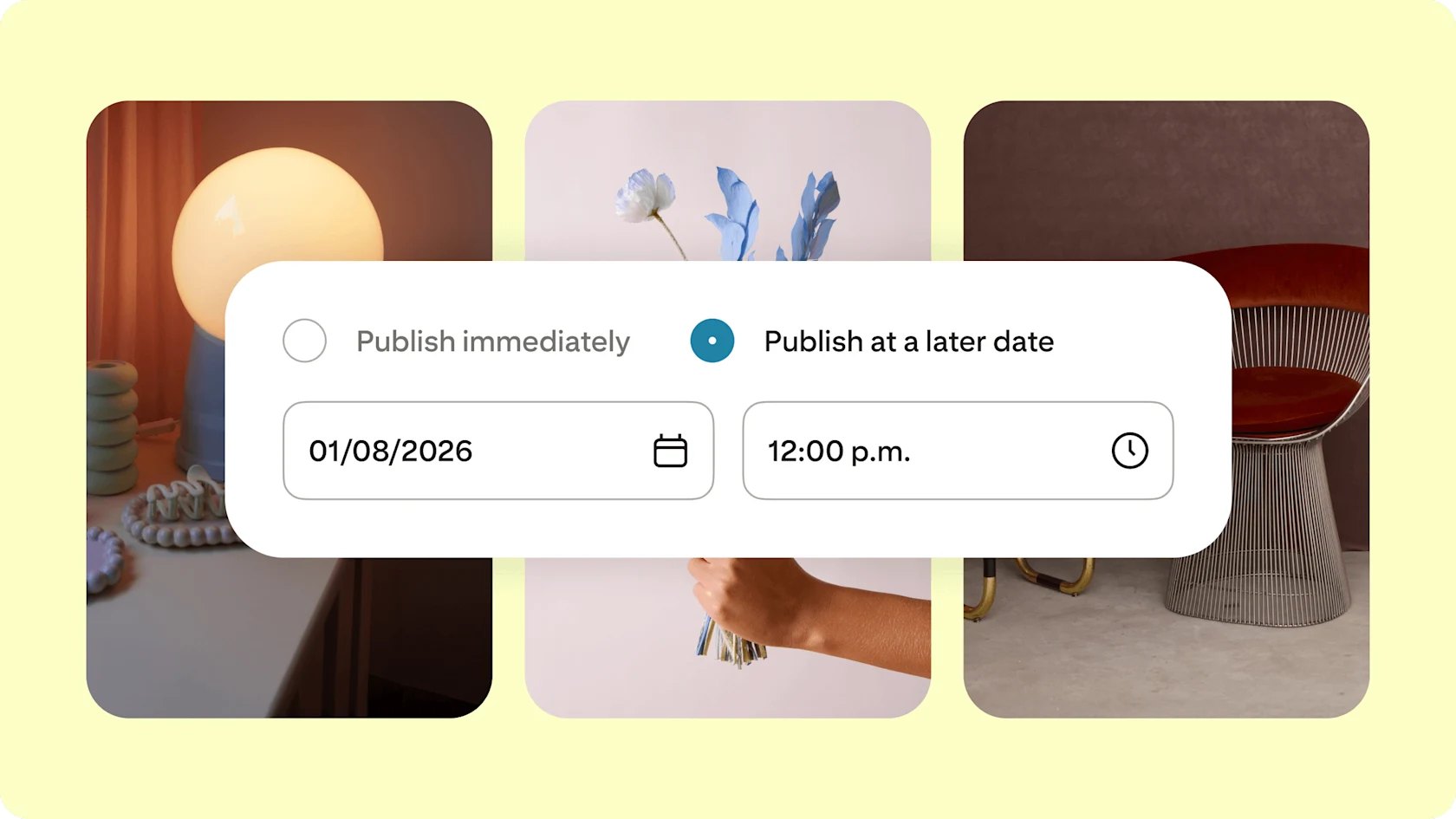
What it is: If you have a Pinterest business account, the Pin scheduler within the Pin creation tool allows you to queue up to ten Pins, each up to 30 days in advance.
How it fits into your workflow: If you’re posting across multiple platforms, staying consistent can be a challenge. Schedule your Pins in advance to simplify your posting process and help maintain a regular content cadence.
Try it: When creating a Pin in the Pinterest app, select ‘Schedule date’ and choose a date and time within the next 30 days. Or on desktop, select ‘Publish at a later date’ to do the same.
Showcasing: Collect and share your work
Once your content is ready, give people a place to explore it.
Boards and collages
What they do: You know that boards can help you to gather ideas—and they can help you to share them, too. Create public boards to use as portfolios and places to showcase your work. Collages combine multiple images into one Pin and help you to show off a product, look or project.
How they fit into your workflow: Once you’ve completed a project, create a board or collage that brings together multiple visuals and tells a story. Perhaps a collage that features all the items in your OOTD. Or take inspiration from a wedding planner who uses boards to display her portfolio of events that she’s produced, or an interior designer who curates a board to show off her maximalist style.
Try them: Think about your most recent content. How could you combine it to be even more effective? If you’ve created five dinner recipe videos, consider saving them to a board to create a weekly meal plan. If you’ve finished a recent DIY, create a collage of the products that came together for the final look, or all of the tools that helped you to complete the job.
Extending content life: Get more out of each piece you create
Repurpose content on Pinterest to help each post go further.
What it does: Connect your Instagram account to Pinterest and enable auto-publishing to seamlessly cross-post content.
How it fits into your workflow: Make the most of what you’ve already created by creating once and publishing twice.
Try it: In your Pinterest account settings, select ‘Link to Pinterest’. Then click ‘Instagram’, tap on ‘Claim’, log in to Instagram in the pop-up window and select ‘Allow’ to grant permissions for both Profile information and Media.
Pro tip: Opt in to the back-catalogue upload when claiming your account to bring your previous 90, 180 or 365 days of content to Pinterest as well.
Insights: Understanding what works and what to make next
Keeping an eye on performance can help you to measure what’s working well and inform the type of content that you will create moving forward.
What it does: The ‘Analytics overview’ lets you track your Pin metrics to better understand which of your content is resonating best with people on Pinterest. You can also get additional intel about who your content is reaching by visiting the ‘Audience insights’ tabs.
How it fits into your workflow: Think of analytics as a bookend, coming in at the beginning and end of the content development process. Check your content stats as a final step after posting, then use the insights that you gain to inform what content you create next.
Try it: Visit Pinterest Analytics to see which of your Pins, themes or ideas are resonating with your audience. Use this to guide your next batch of content and identify opportunities to give top-performing older Pins a refresh.