How to use Amazon Storefront Linking to monetize your Pinterest content
June 15, 2026
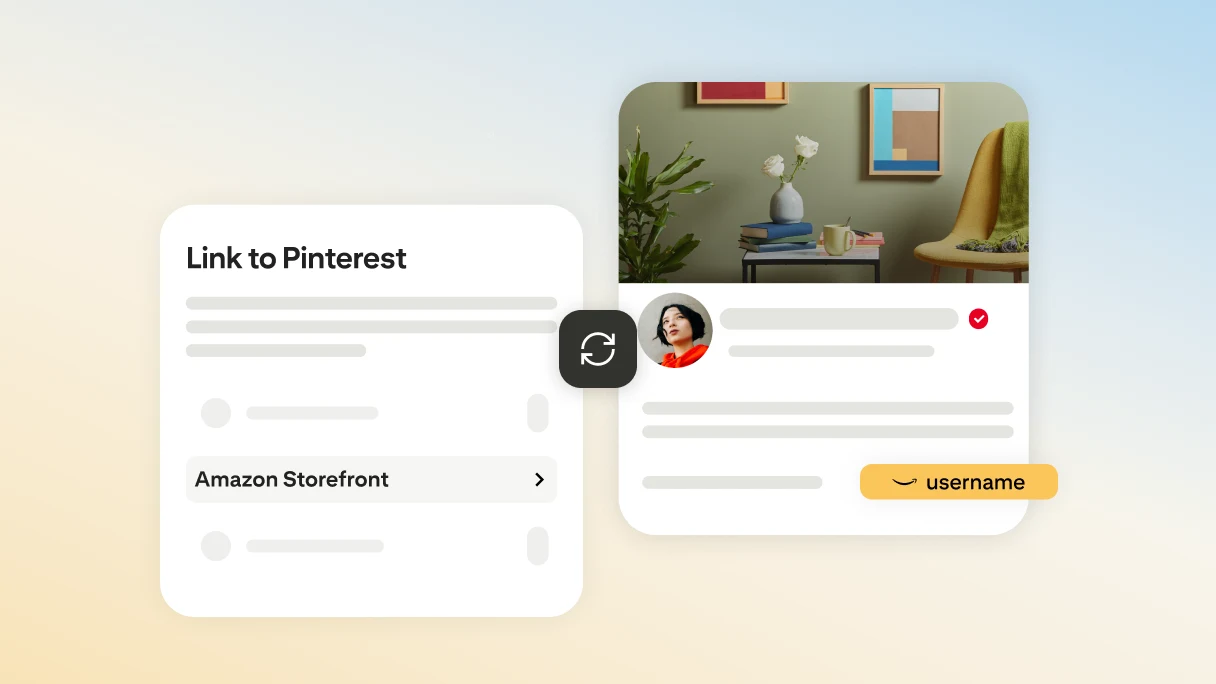
If your comments are full of “Where’s your shirt from?” or “Link to that pan, please,” you’re already seeing how much people trust what you share. Your audience turns to you and your Pins for ideas, reviews, recommendations—and often their next purchase. And when you add affiliate links to Pins that feature products you genuinely love, you can create opportunities to earn from that inspiration.
Now there’s a new way: Amazon Storefront Linking helps you monetize the content you share on Pinterest featuring Amazon products eligible for commission.
Get started with Amazon Storefront Linking
Whether you’re already in the Amazon Influencer Program (AIP) or you join using your Pinterest profile, it lets you connect your Amazon Storefront directly to your Pinterest account, making it more seamless to inspire, recommend and potentially earn commission through affiliate links.
When you link your account, your Amazon Storefront handle will be featured on your Pinterest profile. This can help audiences more easily discover your recommendations and may help drive traffic to your storefront.
Linking your storefront and tagging eligible products can also make it simpler to get credit for purchases your content helps drive. When you link your Amazon Storefront, auto-affiliate linking automatically applies your Amazon affiliate link whenever you tag eligible Amazon products in your image and video Pins.. No manual linking required.
Bonus: Amazon may boost your content as an ad on Pinterest, giving your content more reach, at no extra cost to you.
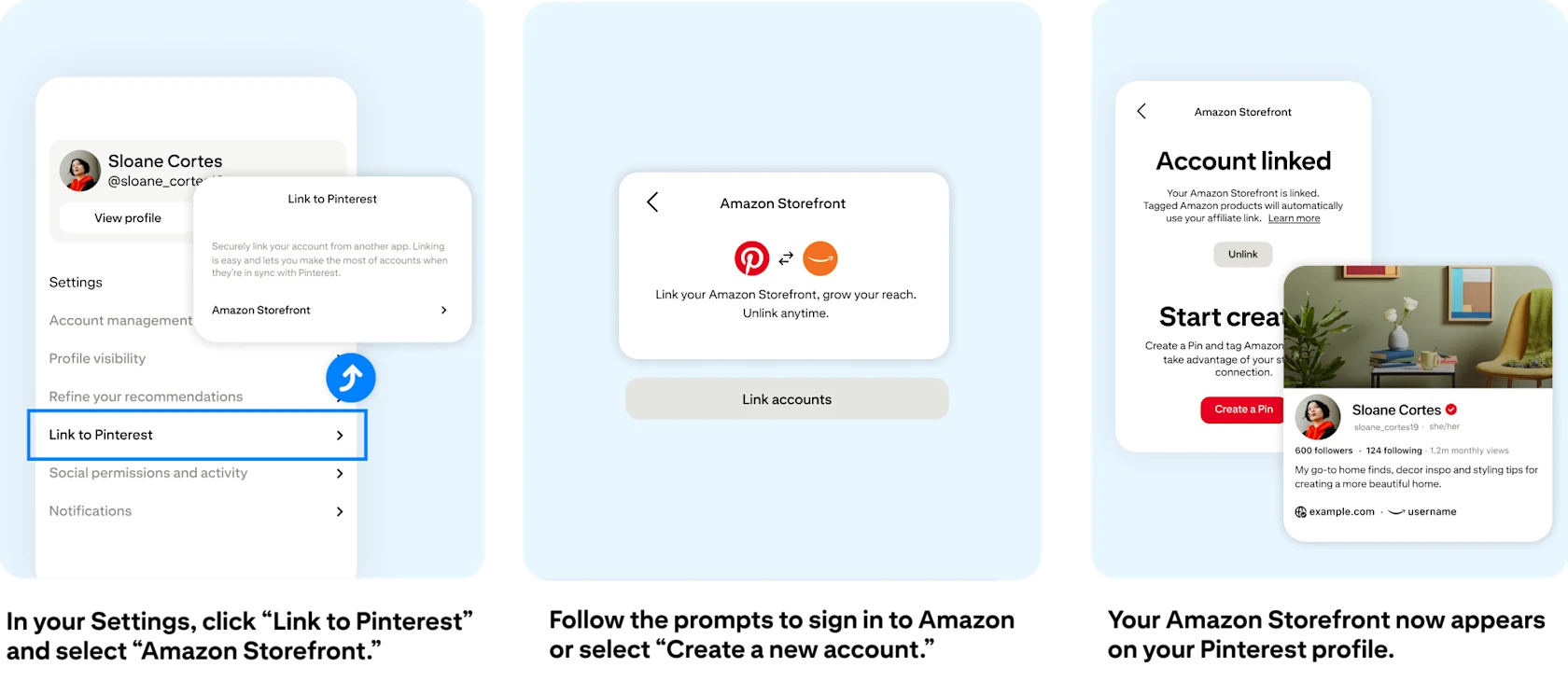
Link your Amazon Storefront: step-by-step
First, connect your Amazon Storefront to Pinterest so it appears on your Pinterest profile.
Tap on your Pinterest profile icon and select “Settings”
Select “Link to Pinterest”
Select “Amazon Storefront”
Tap on “Link accounts”
Select “Sign up”
Log into Amazon in the pop-up window, or select “Create a new account” if needed
Select “Allow”
Start creating!
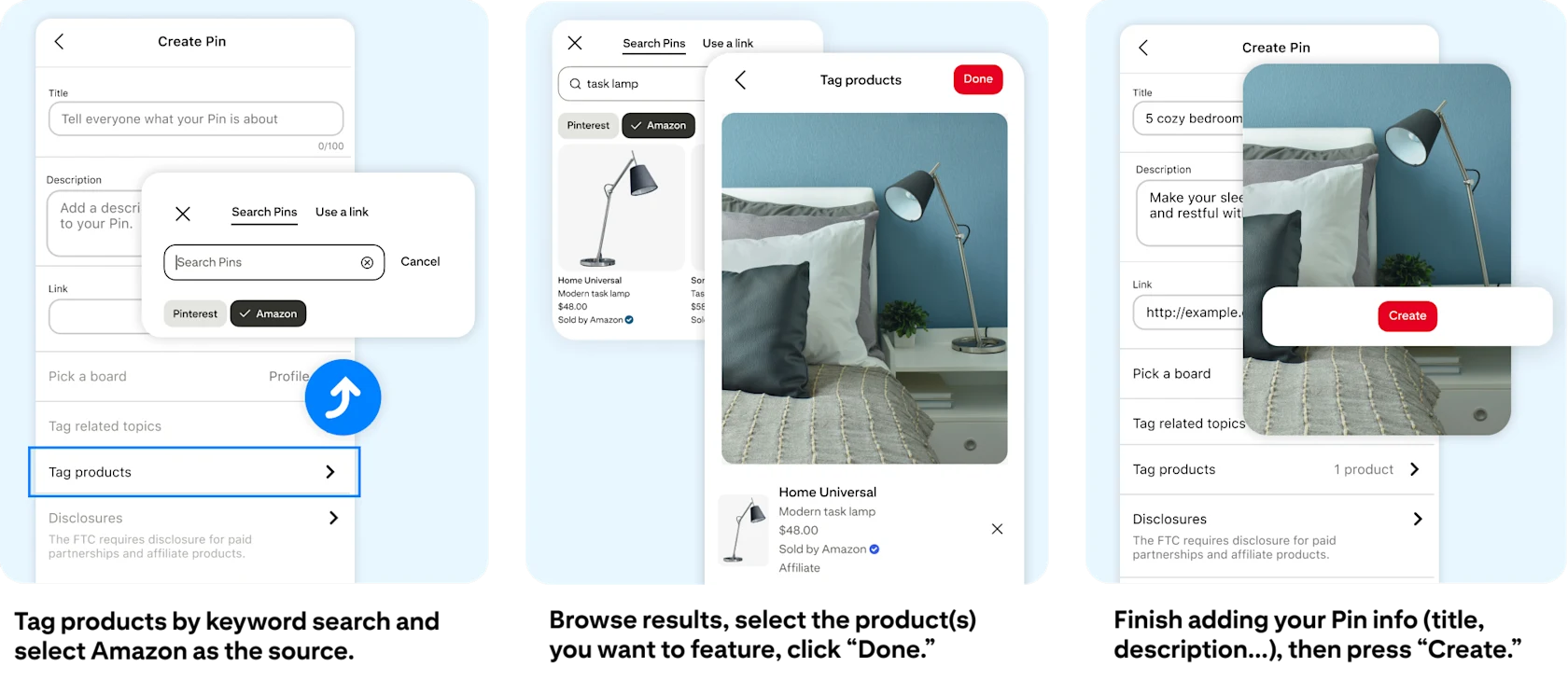
Automatically add affiliate links to Amazon products: step-by-step
Next, tag Amazon products in new or existing image and video Pins. Those links include your Amazon affiliate ID.
While creating or editing a Pin, select “Tag products”
Search for your desired item by typing in a keyword in the search bar
Select “Amazon” from the source options below the search bar
Scroll through the available options and select your desired product
Click the “+” icon to add additional products
When you’ve included all relevant products, select “Done”
Amazon Storefront Linking is gradually becoming available to creators globally with eligible Pinterest business accounts. If it’s not available in your region yet, stay tuned.